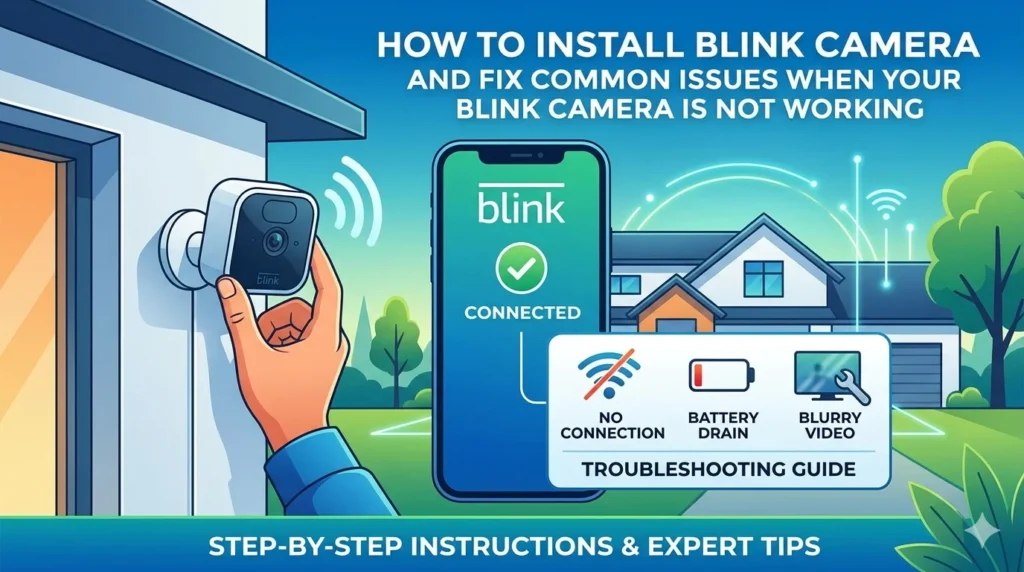
Blink cameras are among the most popular smart home security devices available today. They offer wireless installation, motion detection, cloud storage options, and remote monitoring through a smartphone app. Whether you are setting up a new camera or trying to solve a problem with an existing one, understanding the installation process and troubleshooting techniques can help keep your security system running smoothly.
In this guide, you’ll learn how to install a Blink camera and what to do if your Blink camera is not working properly.
How to Install a Blink Camera
Installing a Blink camera is a straightforward process that requires only a few steps.
Step 1: Download the Blink App
Begin by downloading the Blink Home Monitor app from the App Store or Google Play Store. Create a new account or sign in to your existing Blink account.
Step 2: Set Up the Sync Module
The Sync Module connects your Blink cameras to your Wi-Fi network. Plug the Sync Module into a power outlet and wait for the status lights to appear.
Open the Blink app, tap the plus icon, and select “Sync Module.” Scan the QR code on the device and follow the on-screen instructions to connect it to your Wi-Fi network.
Step 3: Insert Camera Batteries
Open the battery compartment and insert the included AA lithium batteries. Make sure the batteries are installed correctly according to the polarity markings.
Step 4: Add the Camera
In the Blink app, tap the plus icon and select your Blink camera model. Scan the camera’s QR code and allow the app to pair it with the Sync Module.
Step 5: Mount the Camera
Choose a location that provides a clear view of the area you want to monitor. Secure the camera using the included mounting hardware and test the live view before finalizing the installation.
My Blink Camera Is Not Working – Common Fixes
If your Blink camera stops functioning after installation, there are several troubleshooting steps you can try.
Check Your Internet Connection
A weak or unstable internet connection can prevent the camera from communicating with the Blink servers. Restart your router and verify that your Wi-Fi network is functioning correctly.
Replace Low Batteries
Blink cameras rely on battery power for operation. If the batteries are running low, the camera may go offline or fail to record motion events. Replace old batteries with fresh lithium AA batteries.
Verify Sync Module Status
The Sync Module acts as the communication hub between your camera and the Blink app. If the Sync Module is offline, your camera may stop responding. Restart the Sync Module by unplugging it for 30 seconds and plugging it back in.
Update the Blink App
Using an outdated version of the Blink app may cause performance issues. Check for updates and install the latest version available.
Check Motion Detection Settings
If your camera is not recording movement, make sure motion detection is enabled. Review activity zones and adjust sensitivity settings if needed.
Fix Live View Problems
Live View may fail if the Wi-Fi signal is weak. Move the camera closer to the router or Sync Module and try again.
Reset the Camera
If none of the above solutions work, perform a factory reset and reconnect the camera through the Blink app.
Tips to Prevent Future Problems
- Use high-quality lithium batteries.
- Keep the Blink app updated.
- Ensure strong Wi-Fi coverage throughout your home.
- Regularly test motion detection and notifications.
- Clean the camera lens periodically for clear video quality.
Conclusion
Learning how to install a Blink camera correctly is the first step toward reliable home security. If your Blink camera is not working, most issues can be resolved by checking your Wi-Fi connection, replacing batteries, restarting the Sync Module, or updating the app. Following these simple troubleshooting steps can help ensure your Blink camera continues to provide dependable protection for your home.